User manual
Scratch
Generated from the capability catalog.
1. Temporary notes
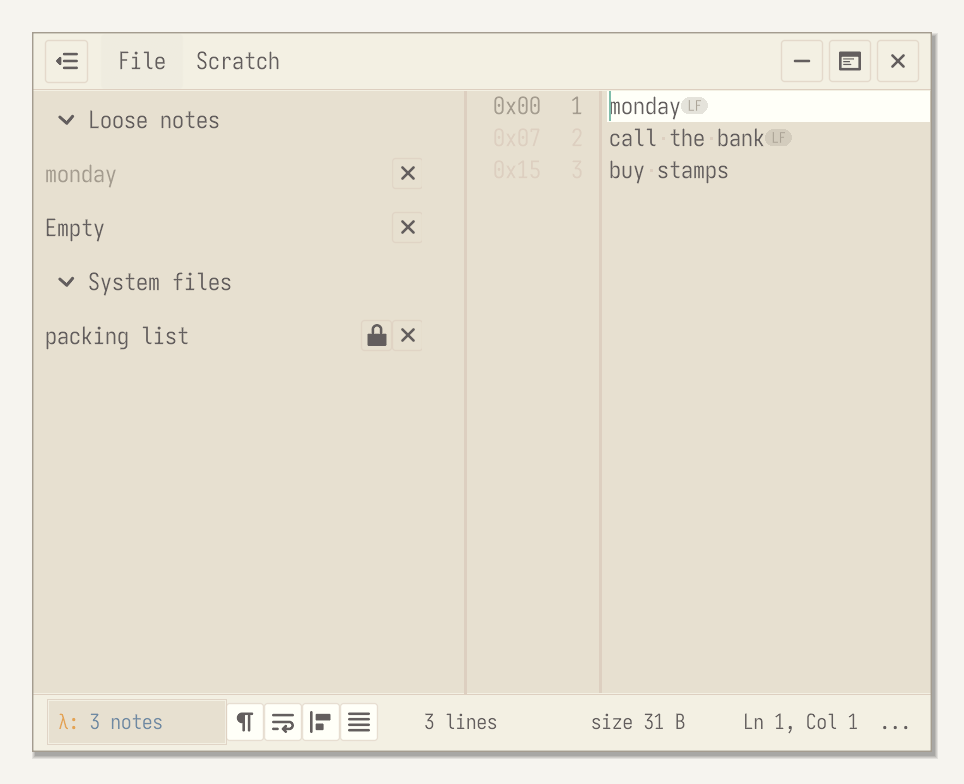
Scratch keeps a short stack of temporary notes, called slips. Open it, type, leave. Keep anything important somewhere else.
2. Slips
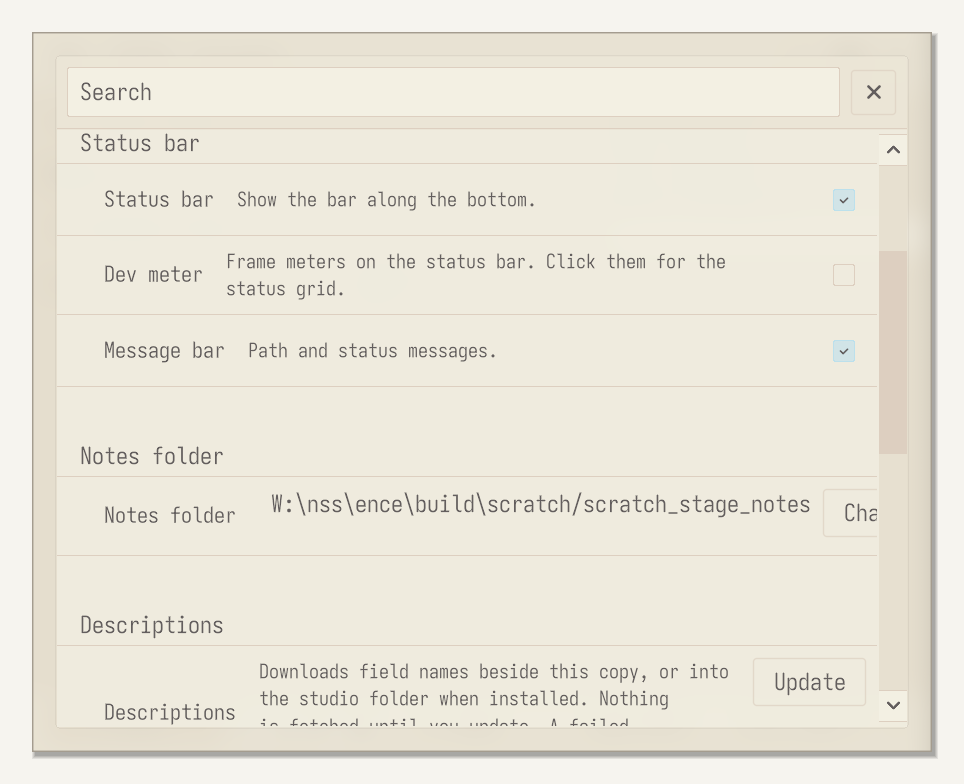
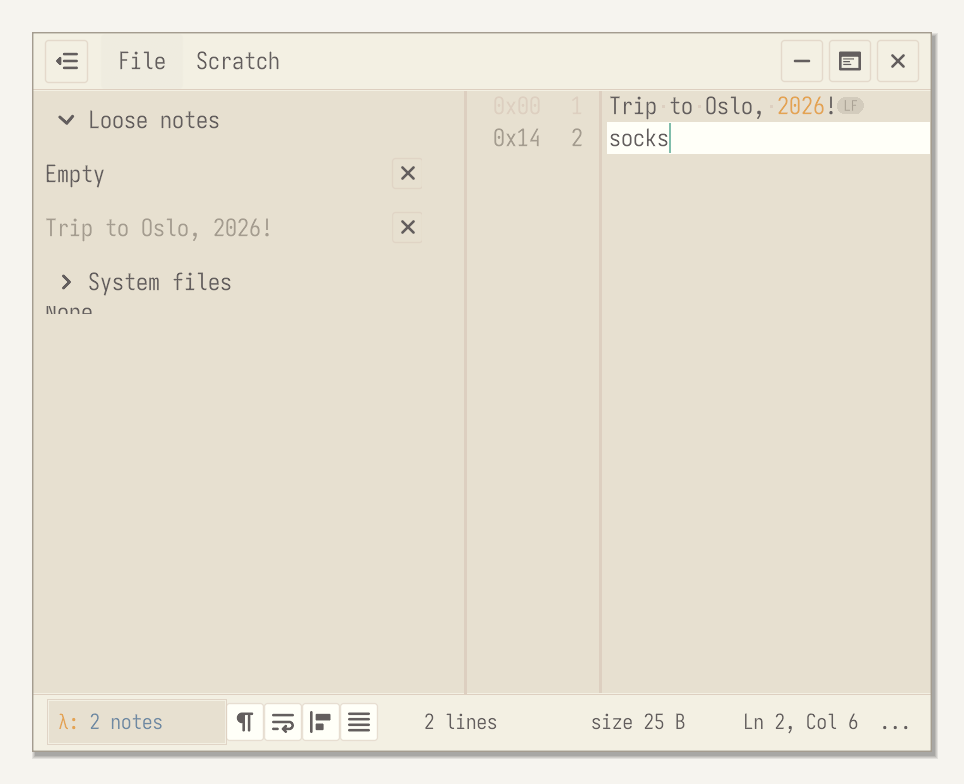
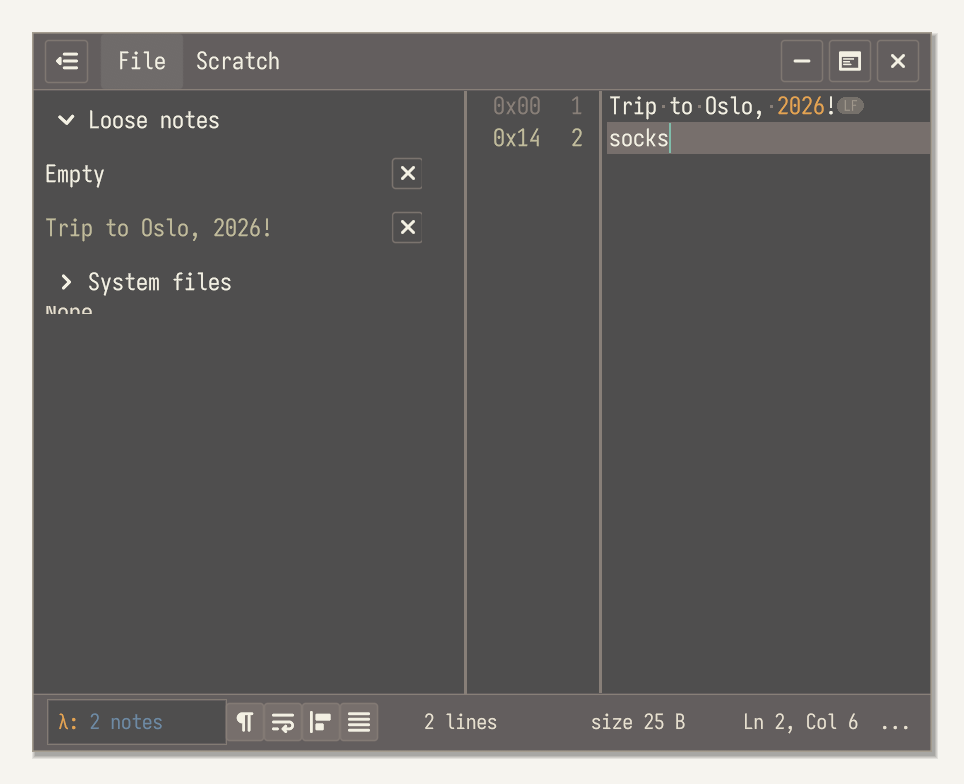
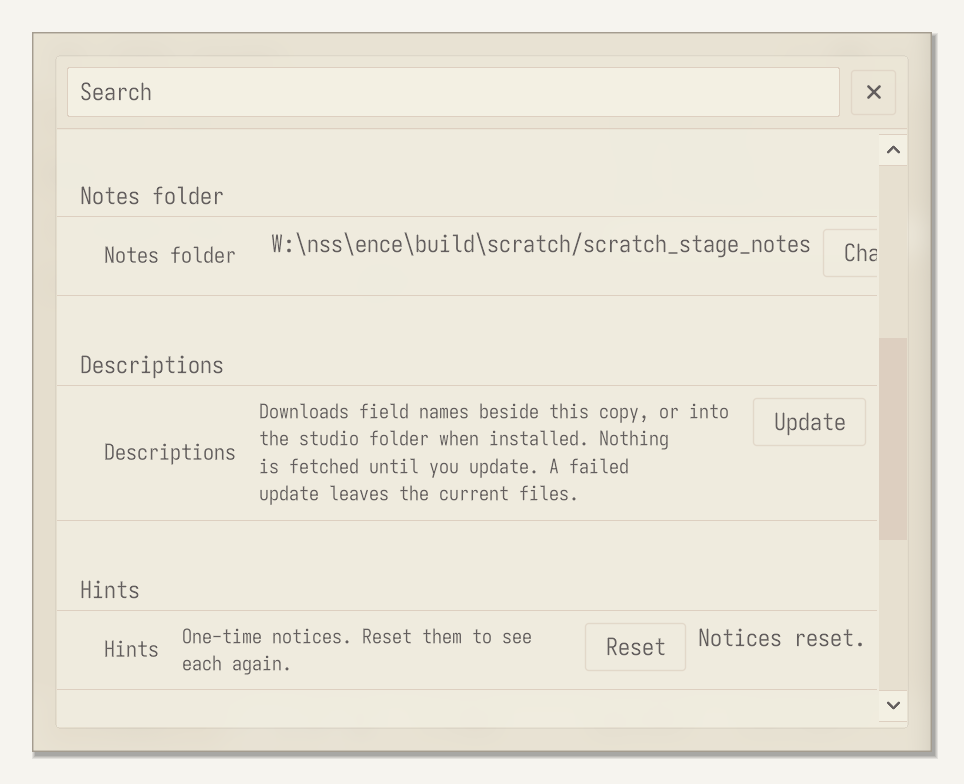
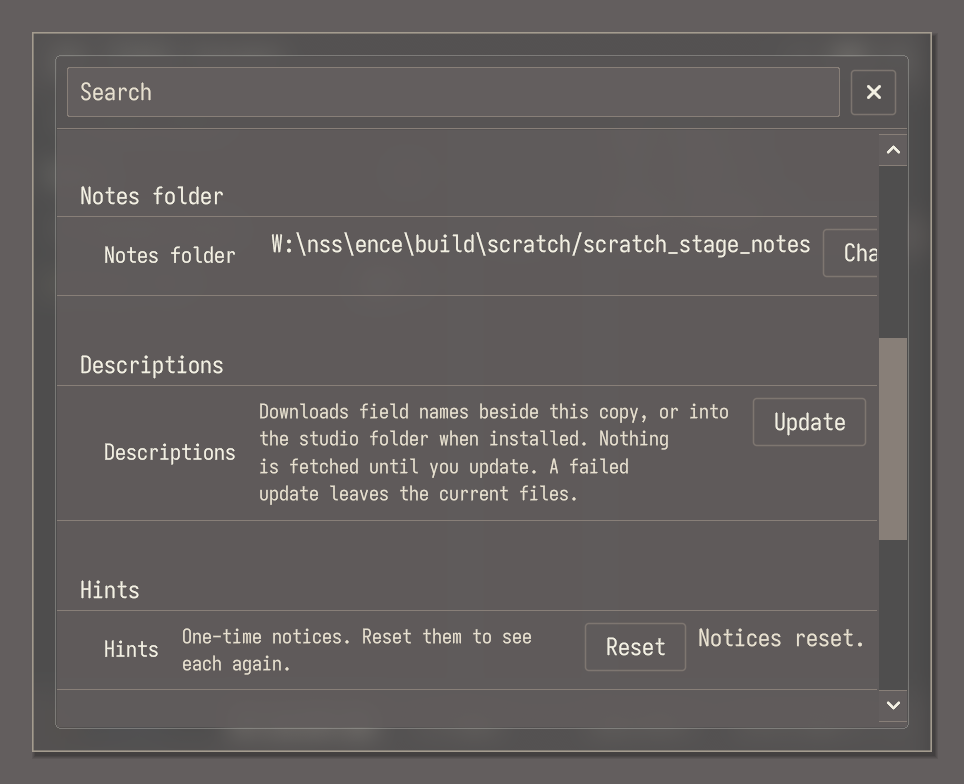
Notes live as files in a folder. The default folder is notes under the app's local directory. Options > Notes folder shows the folder, and Change points it somewhere else, such as a synced folder. A slip is a note Scratch keeps in that folder. Its file name is a date stamp, yyyy_mm_dd_, followed by a short form of its first line: A to Z become lowercase, a to z and 0 to 9 stay, a run of spaces, tabs, hyphens, or _ characters becomes one _, and every other character is dropped, including accented letters and other non-ASCII text. The short form stops when it reaches 40 bytes, and a trailing _ is trimmed. Every character it keeps is one byte, so that is also 40 characters. A first line of Trip to Oslo, 2026! gives trip_to_oslo_2026. A slip whose first line has none of those characters is named note, and a name already in use gets _2, _3, and so on. A file you open from somewhere else stays where it is and is listed under System files. A slip holds 64 KB, and the stack holds 48 with the newest on top. When another slip will not fit, Scratch names the oldest slip that is not kept and asks to pack it. The empty page is not that slip. If every slip is kept, Scratch says so and packs nothing. Packing it runs the action that needed the room.
3. Notes folder for one note
From a command line, scratch -new -notes:<dir> makes the note in that folder instead and prints ok new with the slip's name. Without -new, Scratch ignores -notes: and uses the folder set in Options.
4. The stack
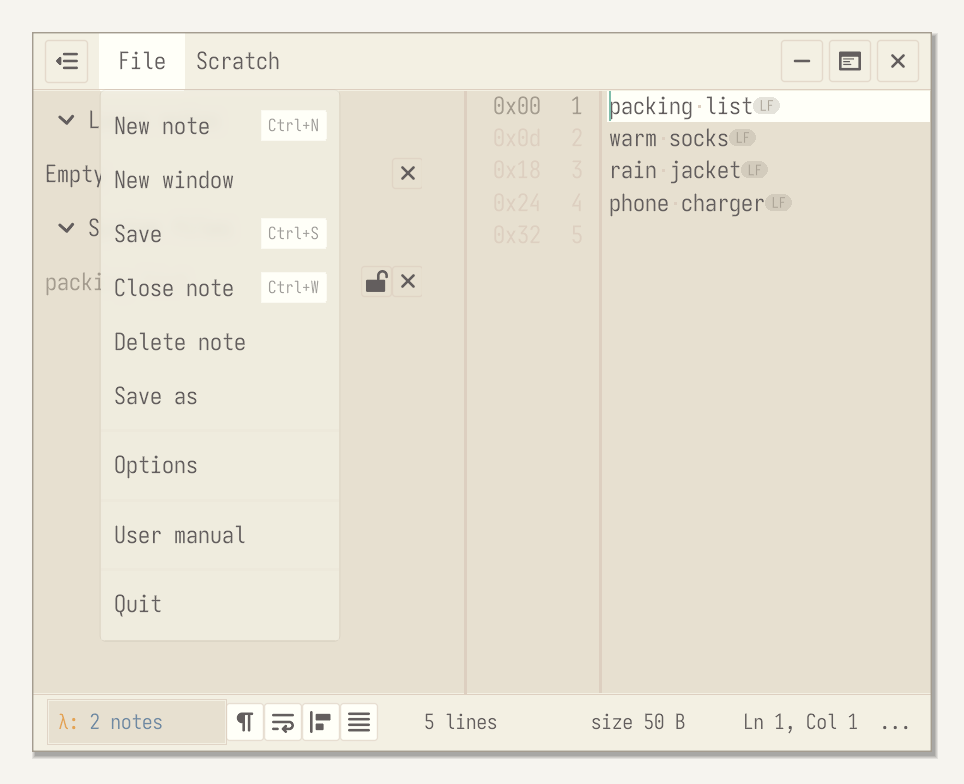
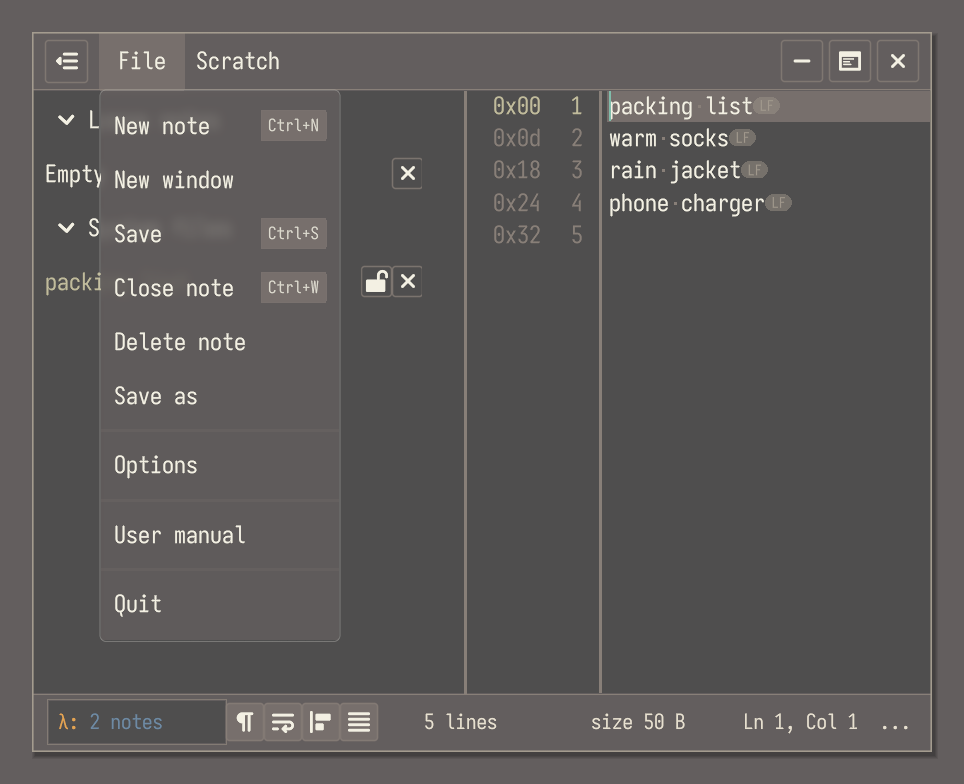
Ctrl+N makes a note. From a command line, scratch -new makes that same note and exits. New from clipboard, on the File menu and on a slip's menu, puts the clipboard text on top of the stack and leaves the open page alone. An empty clipboard does nothing. Duplicate copies the open page into a new slip and selects that copy. The same command on a slip's menu copies that row. An opened file is copied into a slip and the file stays as it is. An empty page is left alone. The empty page stays at the top of the list. A full stack stays full. Alt+Up and Alt+Down move through the stack. New window opens another view of the same stack. File has New note, New from clipboard, Duplicate, New window, Save, Close note, Delete note, Save as, Options, User manual, and Quit.
5. Save and close keys
Ctrl+S saves the note, and Ctrl+W closes it. The File menu shows both keys, beside Save and Close note.
6. Saving
Scratch writes a slip to its file as you type, so a slip never needs Ctrl+S. The status bar says Slip. Edits to an opened file go to a separate dlt_ file in the notes folder, and the file itself changes only when you save it. The status bar says File, and the row says Edited while that dlt_ is there. Scratch keeps those edits for the next time you open the file. A slip does not grow a Saved badge.
7. Close note
Each row in the list has a Close note button. Closing a slip packs it into compost, the same as Delete note, so nothing is thrown away. Closing an opened file takes it off the list and leaves the file on disk as it was.
8. Sidebar
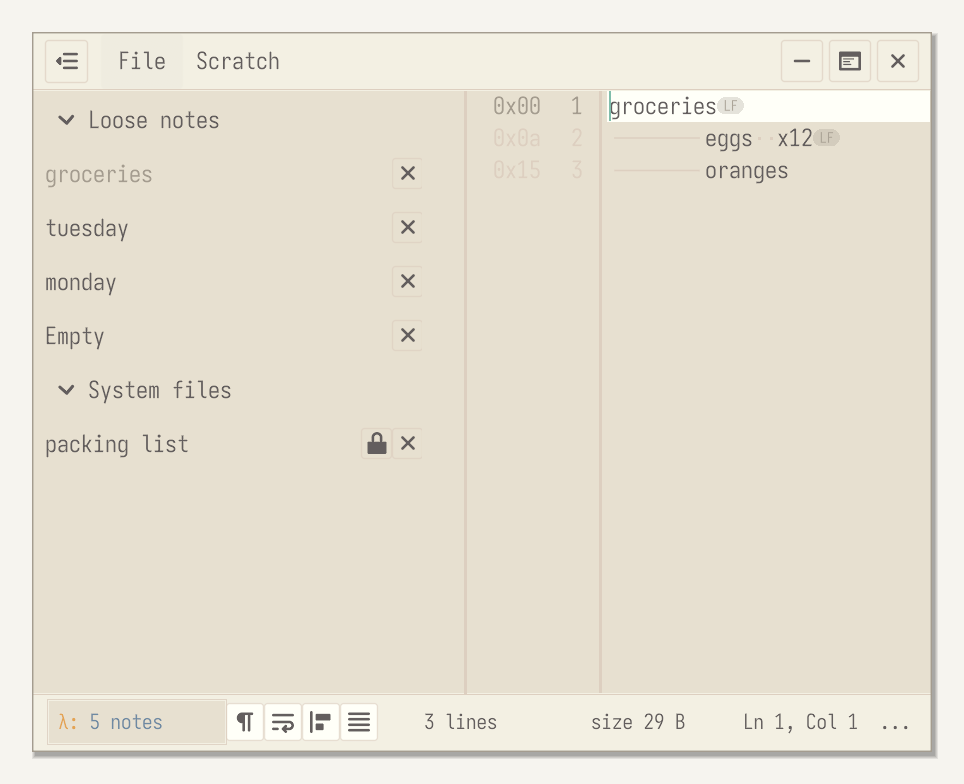
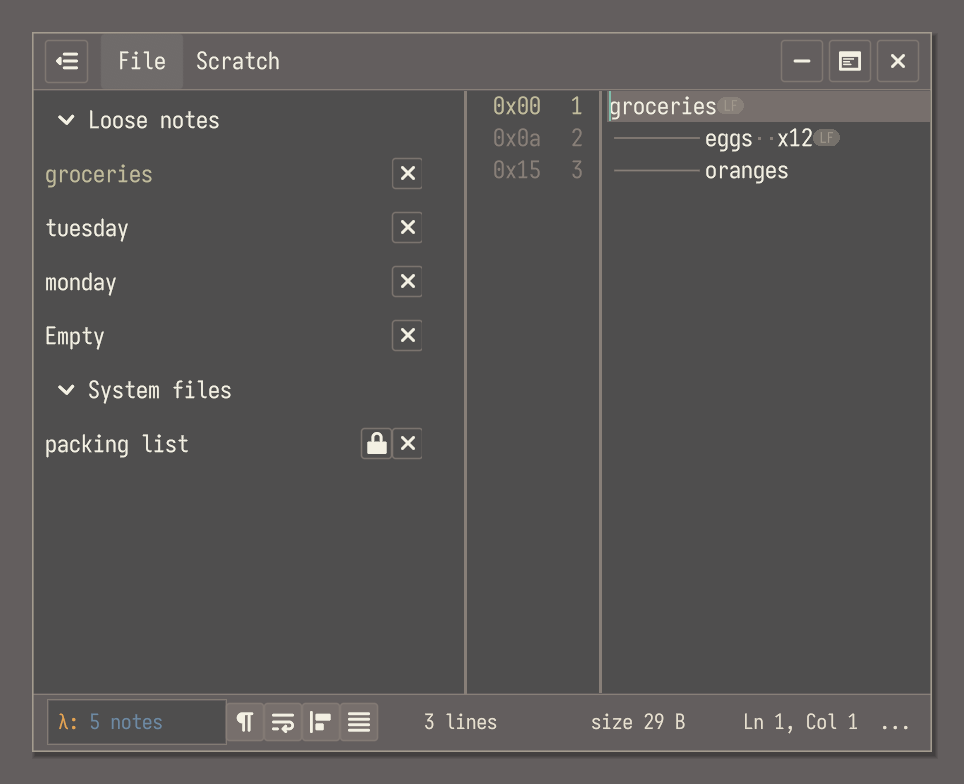
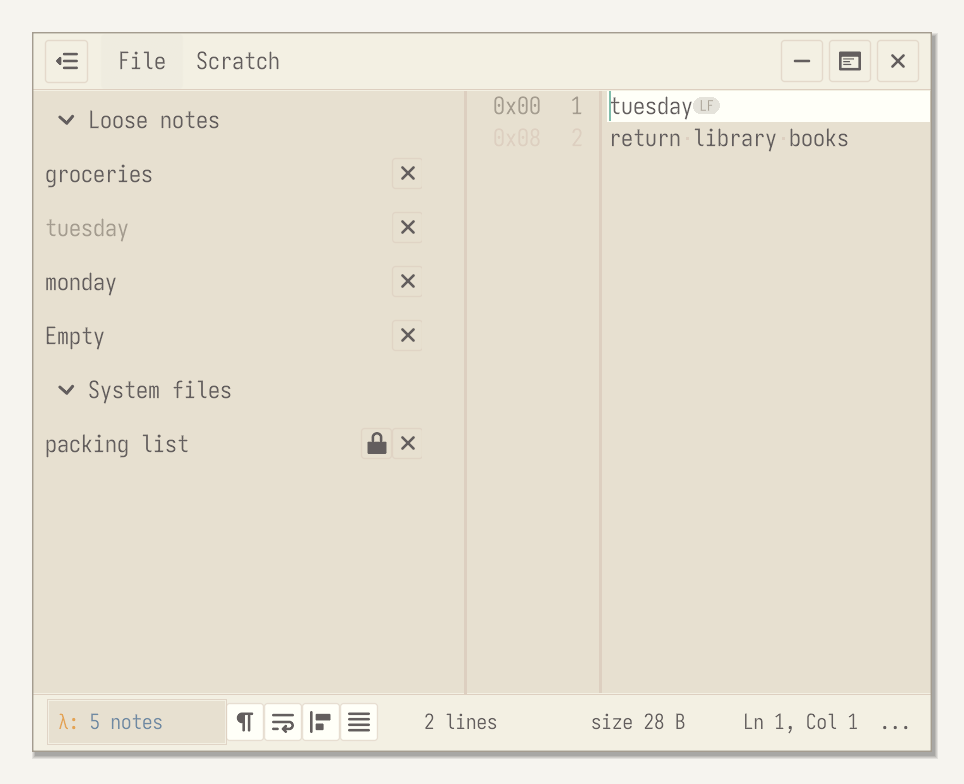
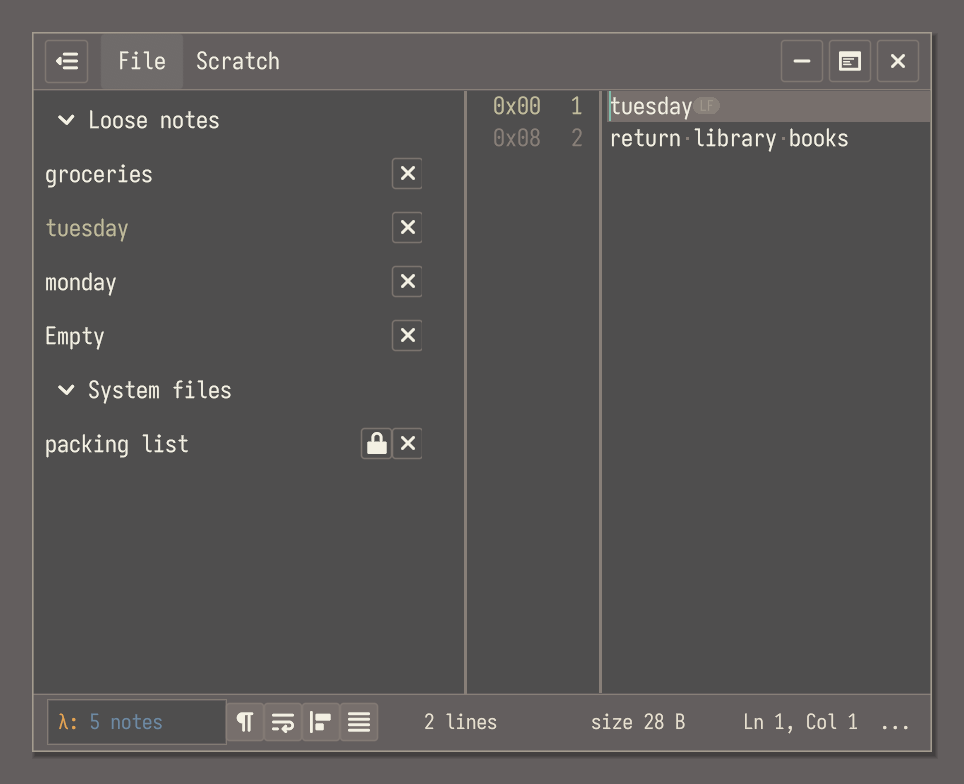
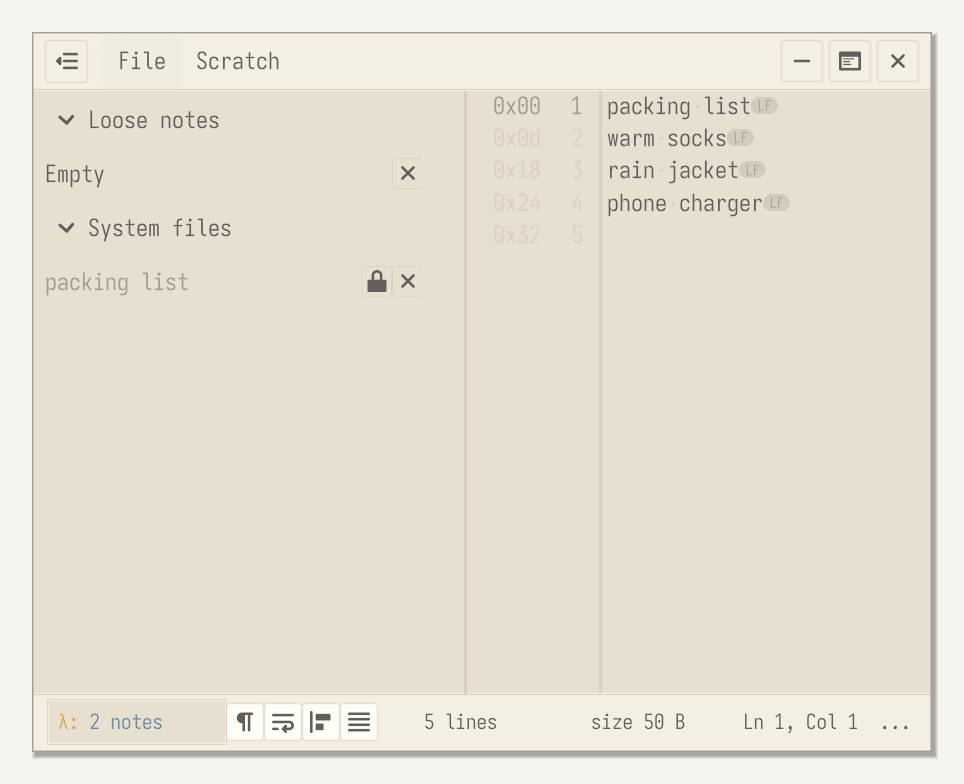
The sidebar lists Loose notes, then Compost, then System files. Click a row to open it. An owned slip shows its age beside the title: Today, Yesterday, or a day count. That is the same date compost uses. A kept slip also says Kept. An opened file has no age. The button at the top left hides or shows the sidebar.
9. Open a file
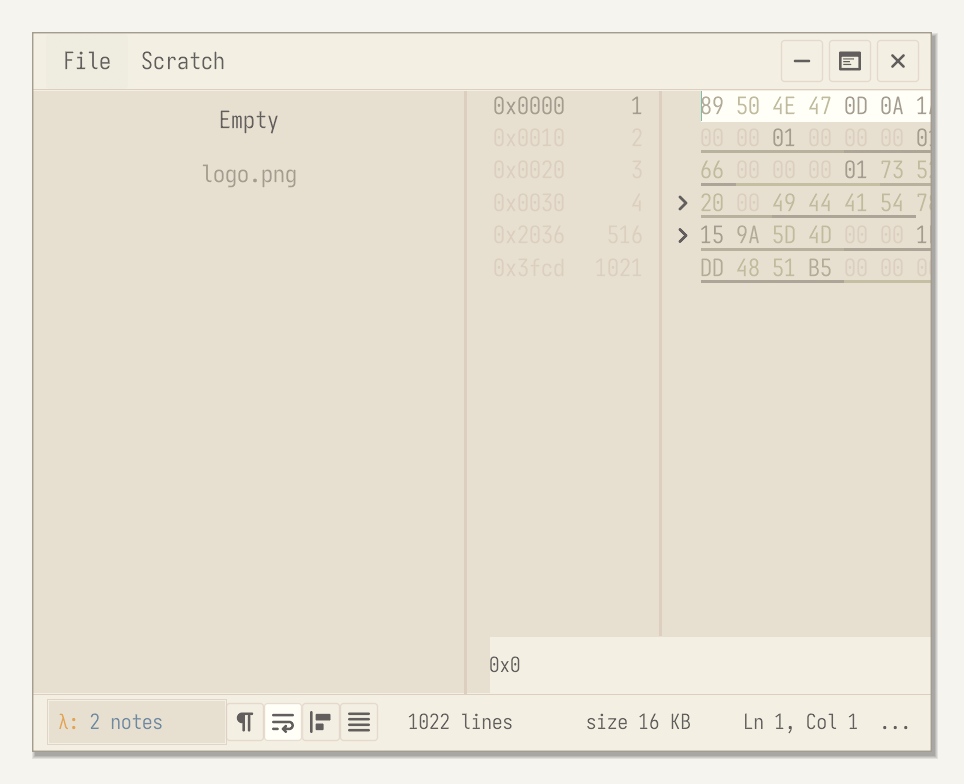
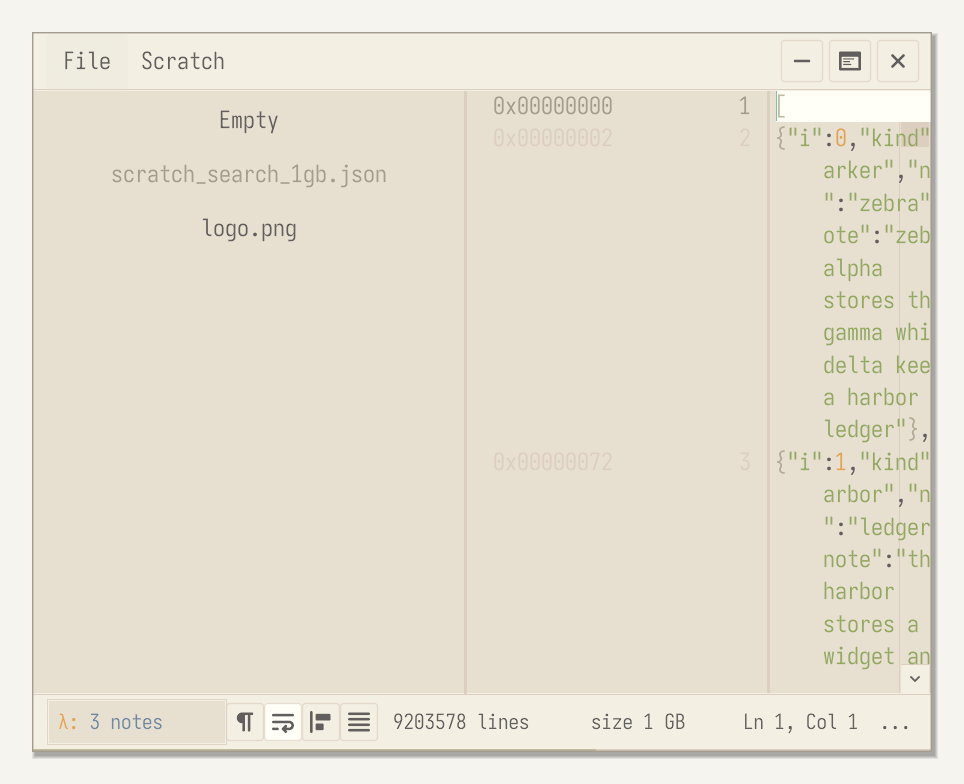
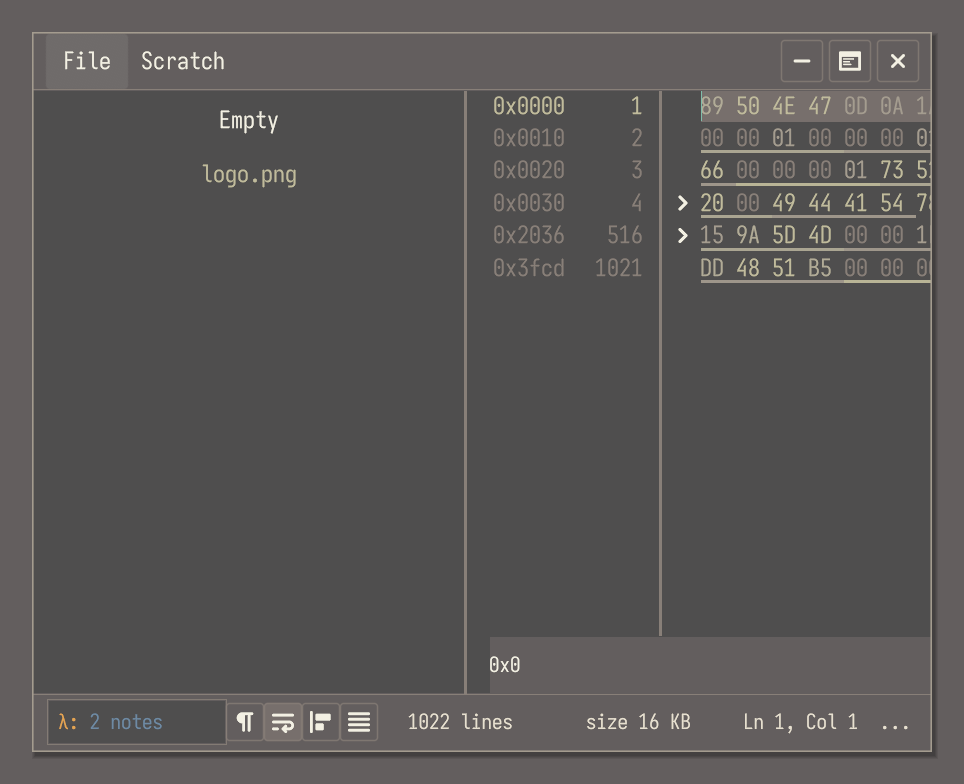
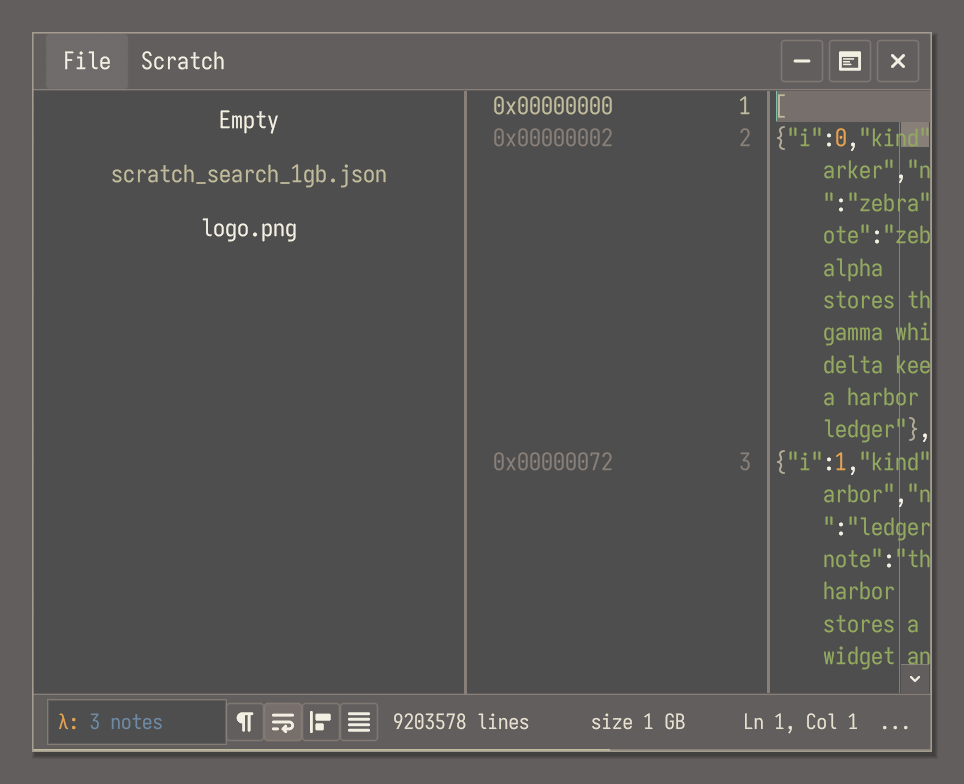
Drop a text file on the window to read it in place, at any size; Scratch maps it straight from disk. Drop a page from the internet, or a small file from a temporary folder, and Scratch keeps a dated copy. A temporary file larger than a slip is copied onto disk and opened the same mapped way. Binary samples open as hex.
10. Drop a link
Drop a web link, or a .url shortcut, and Scratch downloads the page into a new slip if the page is text. The slip is named from the last part of the address, or page when the address ends in a slash.
11. Lock a file
An opened file has a Lock file button on its row under System files. A locked file ignores typing, but you can still move around in it, and it still reloads when the file changes on disk. Scratch remembers the lock.
12. When a file changes on disk
An opened file reloads when it changes on disk. If you have unsaved edits, Scratch keeps your copy and says The file changed on disk., with Use the file, Keep mine, and Diff.
13. Overwrite and discard warnings
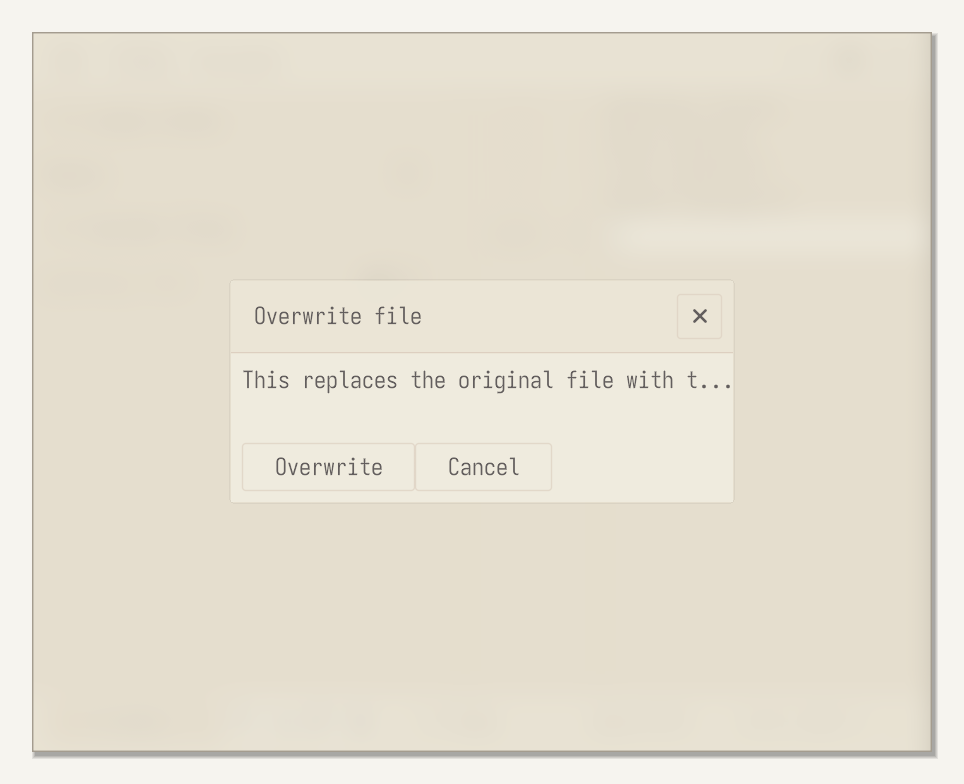
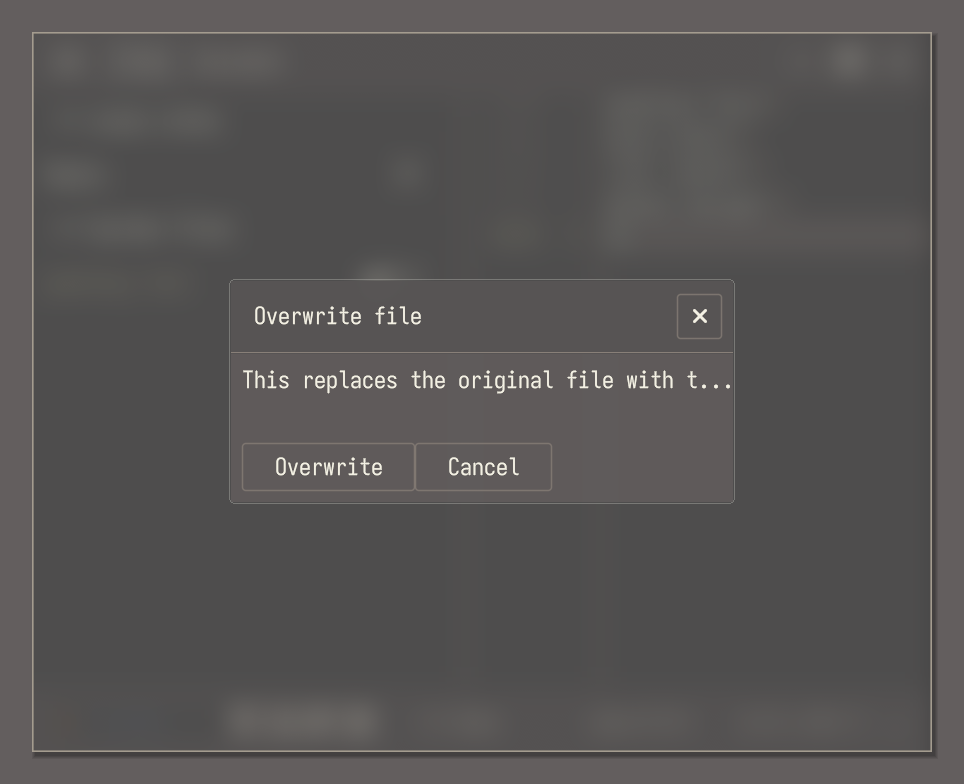
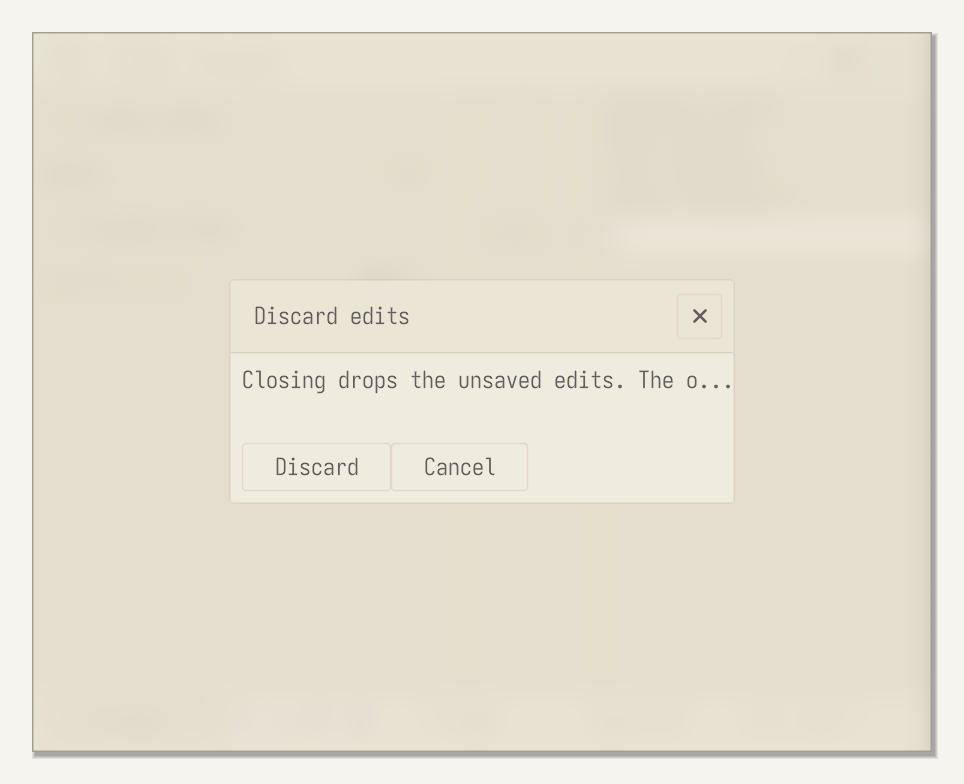
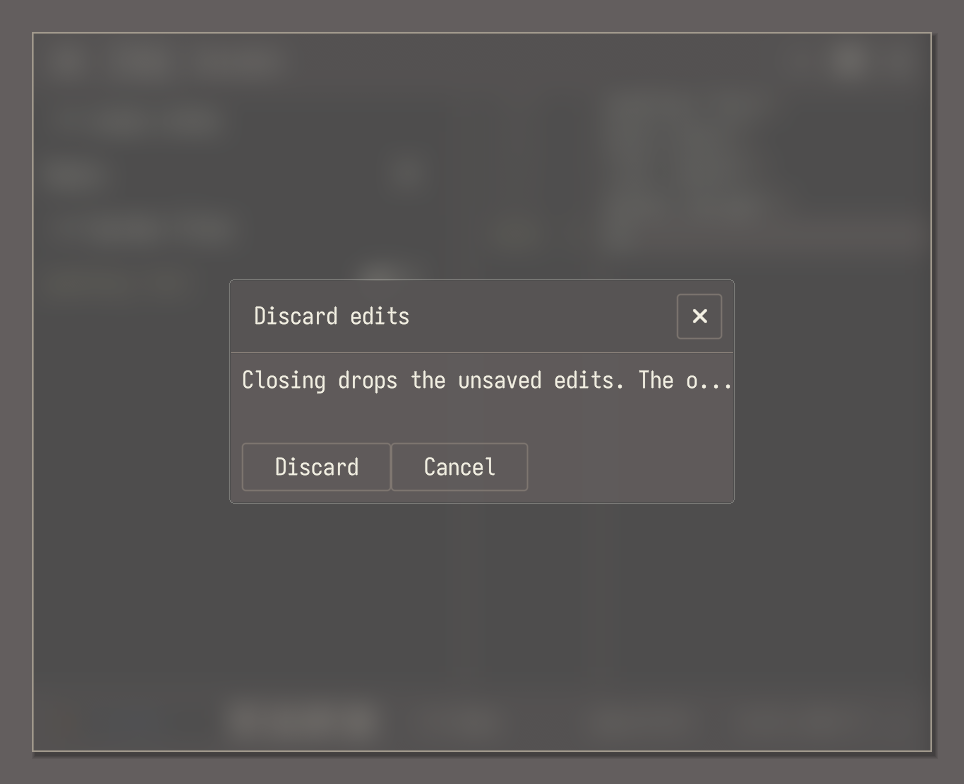
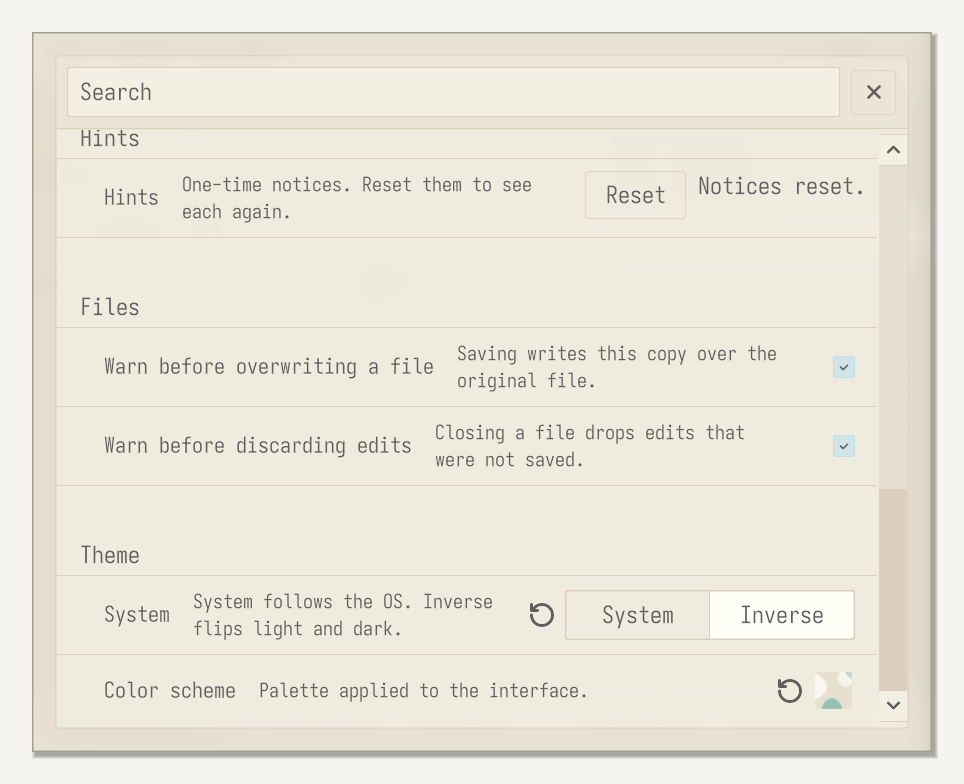
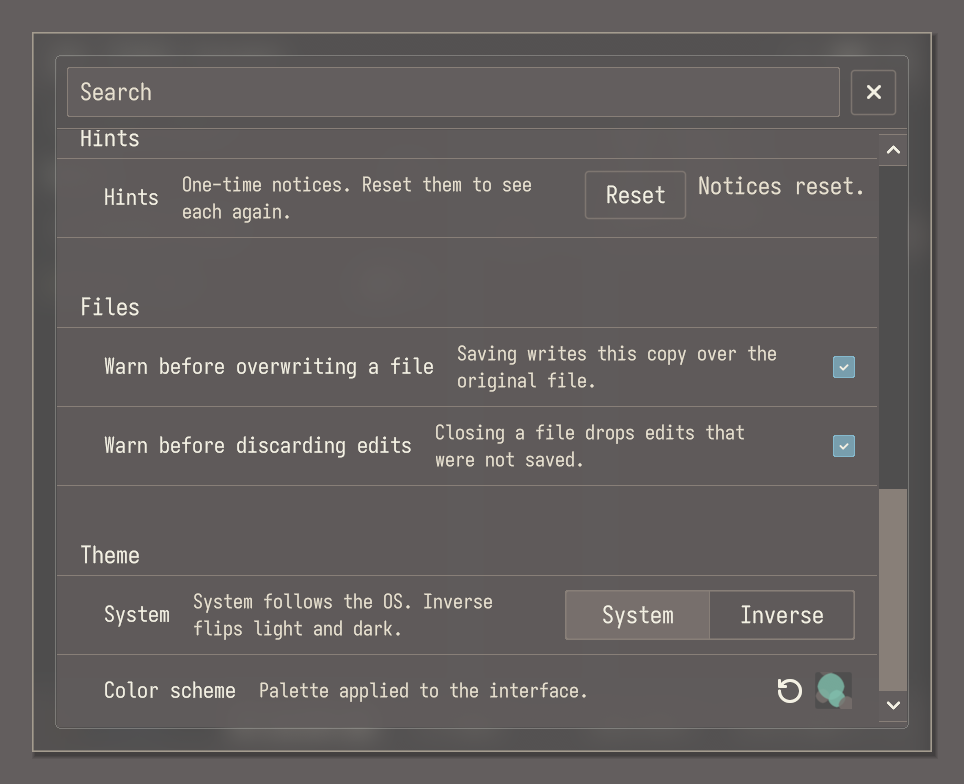
Options > Files has Warn before overwriting a file and Warn before discarding edits, both on at first. With them on, Save on an opened file first asks Overwrite file, and closing an opened file with unsaved edits first asks Discard edits. Cancel leaves everything as it was.
14. Hex inspector
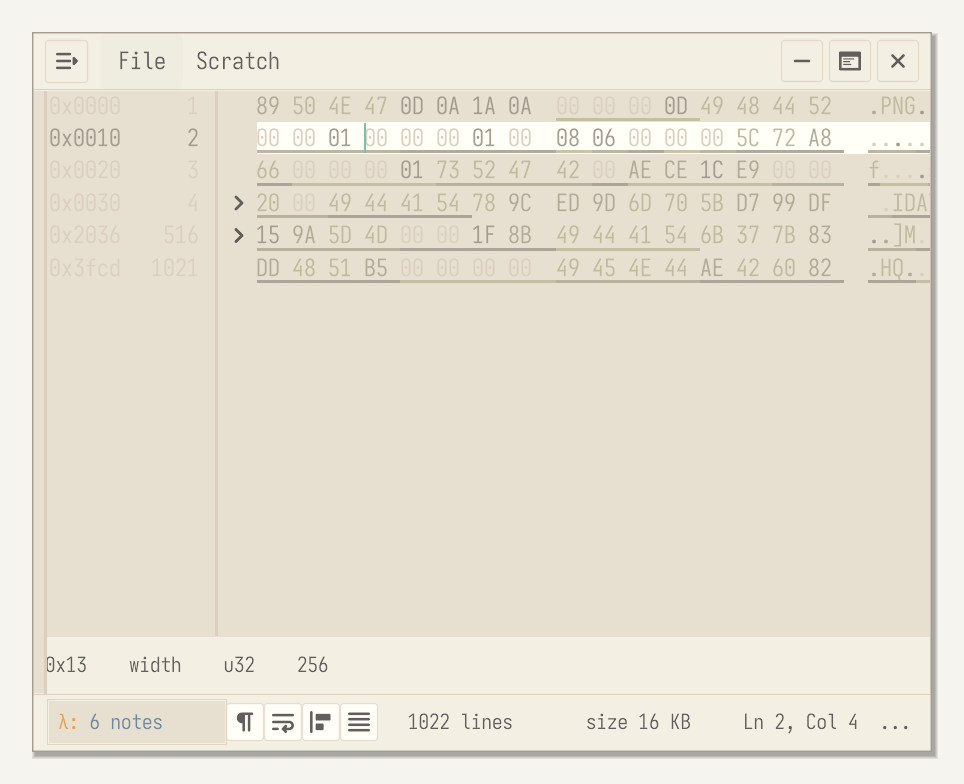
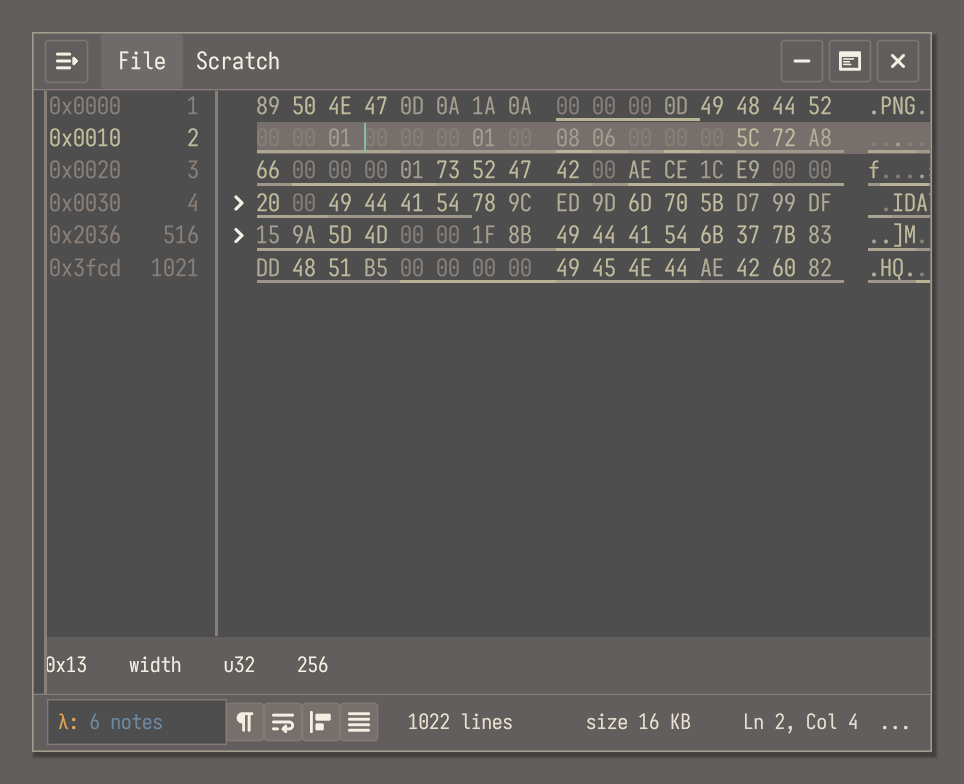
A binary file opens as hex, with its bytes as text beside each row. Click a line number to select that row. When a format description matches the file, its fields are underlined, sections fold behind an arrow, and a strip under the hex names the field at the cursor with its type and value. Click a value in that strip to select that many bytes.
15. Descriptions
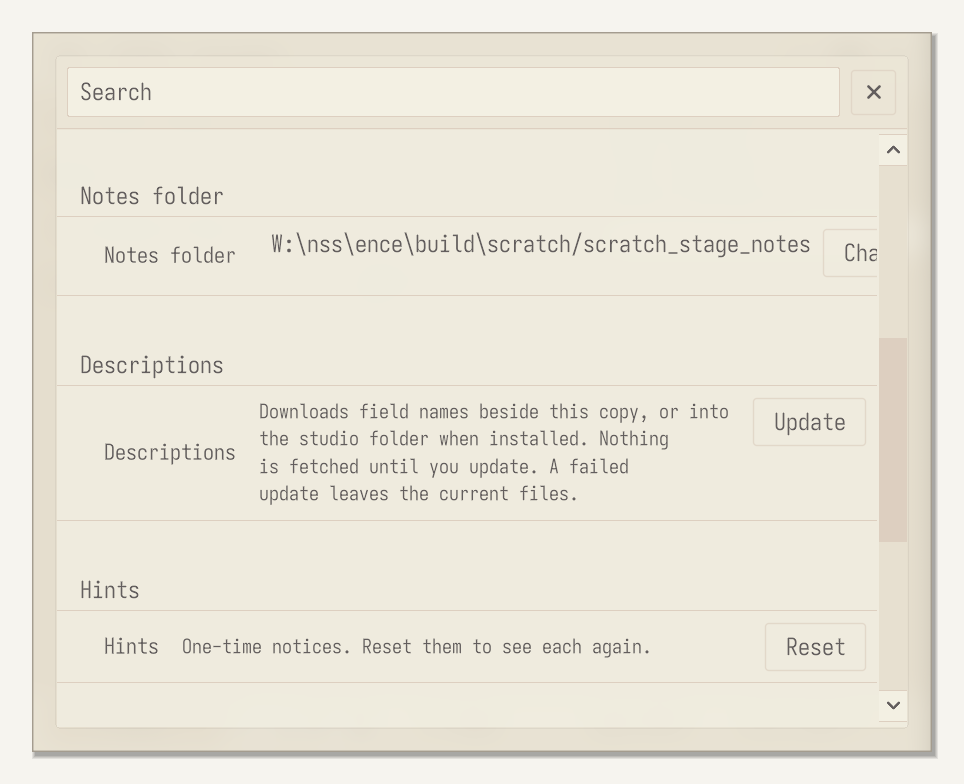
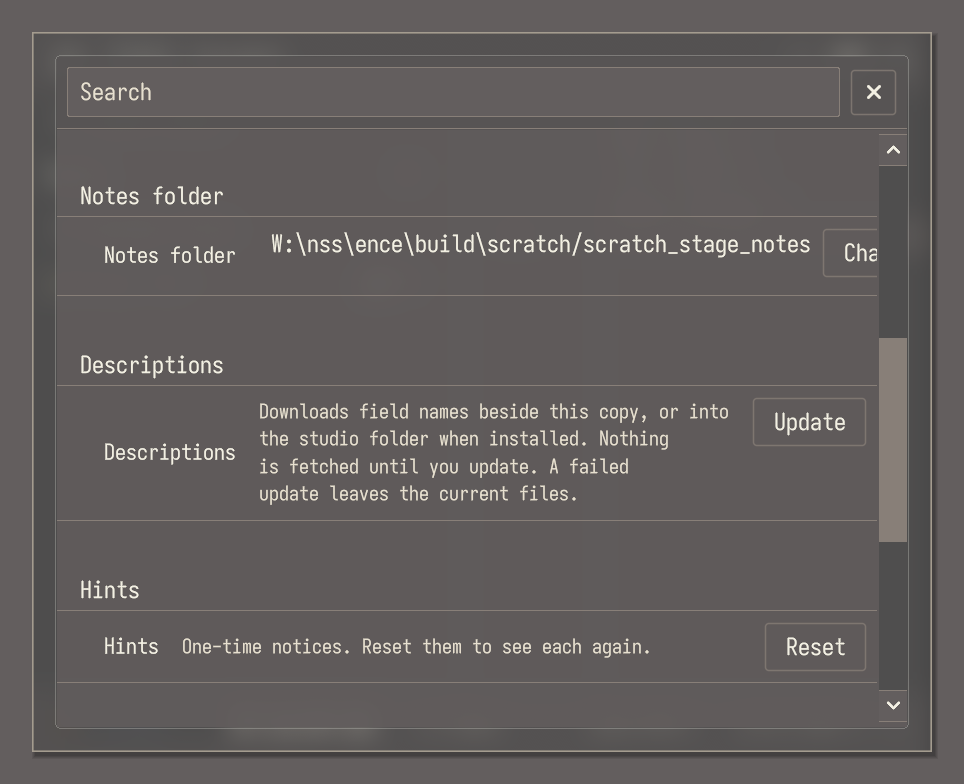
Options > Descriptions has Update, which downloads the format descriptions the hex inspector uses. Scratch downloads them only when you ask: with Update here, or with Download on the Hex parsing notice. A failed update leaves the current files.
16. Status bar
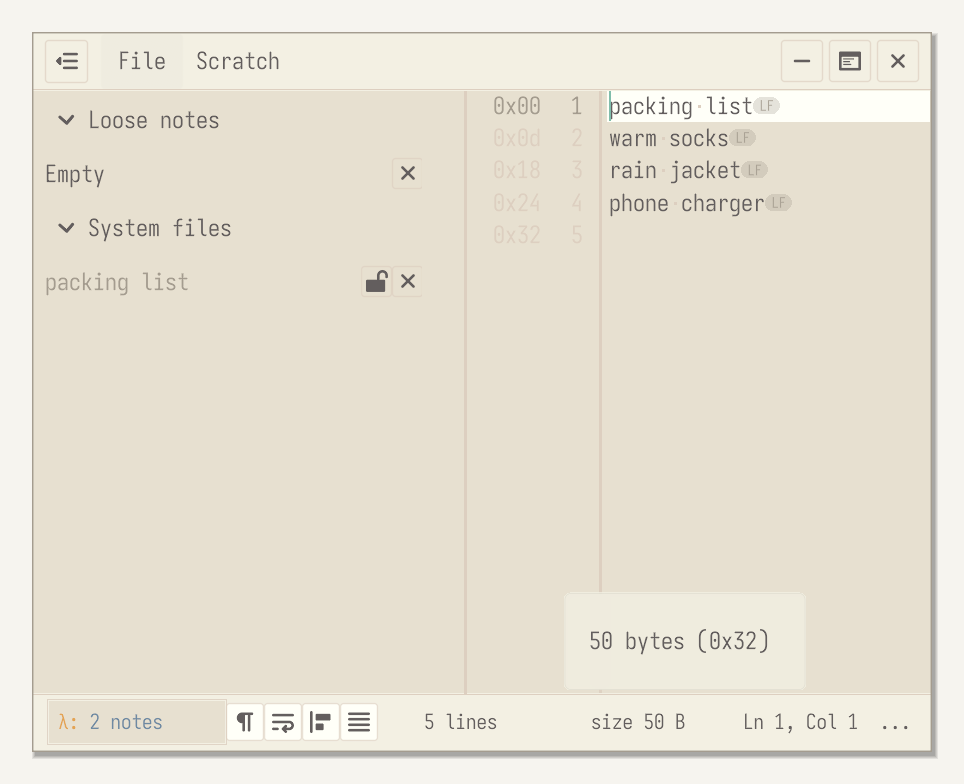
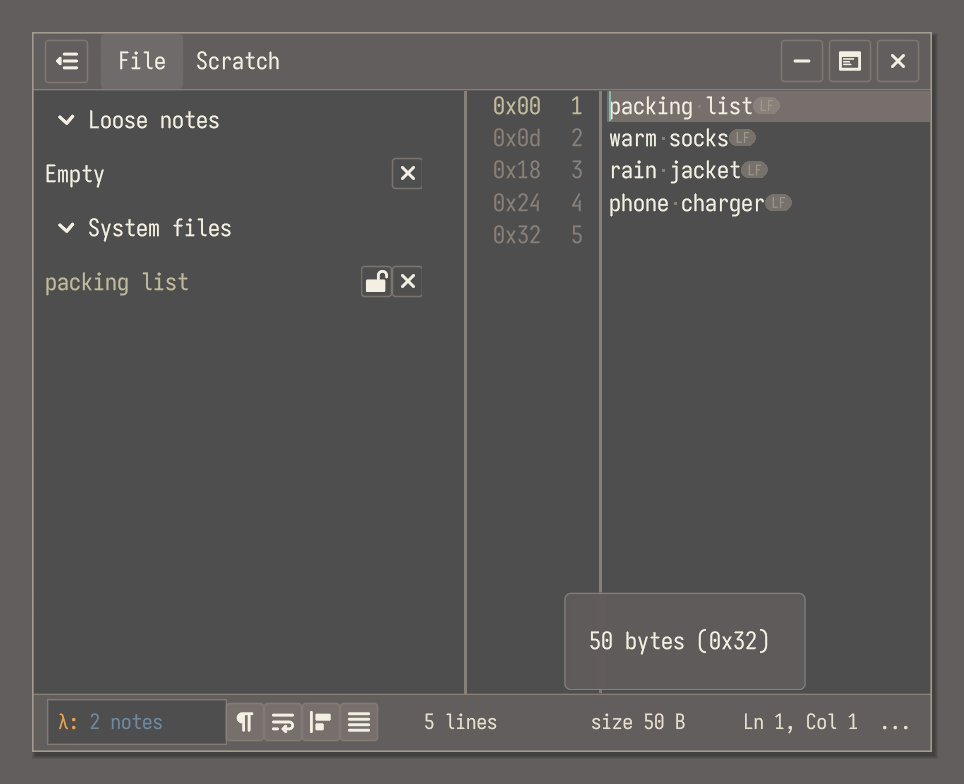
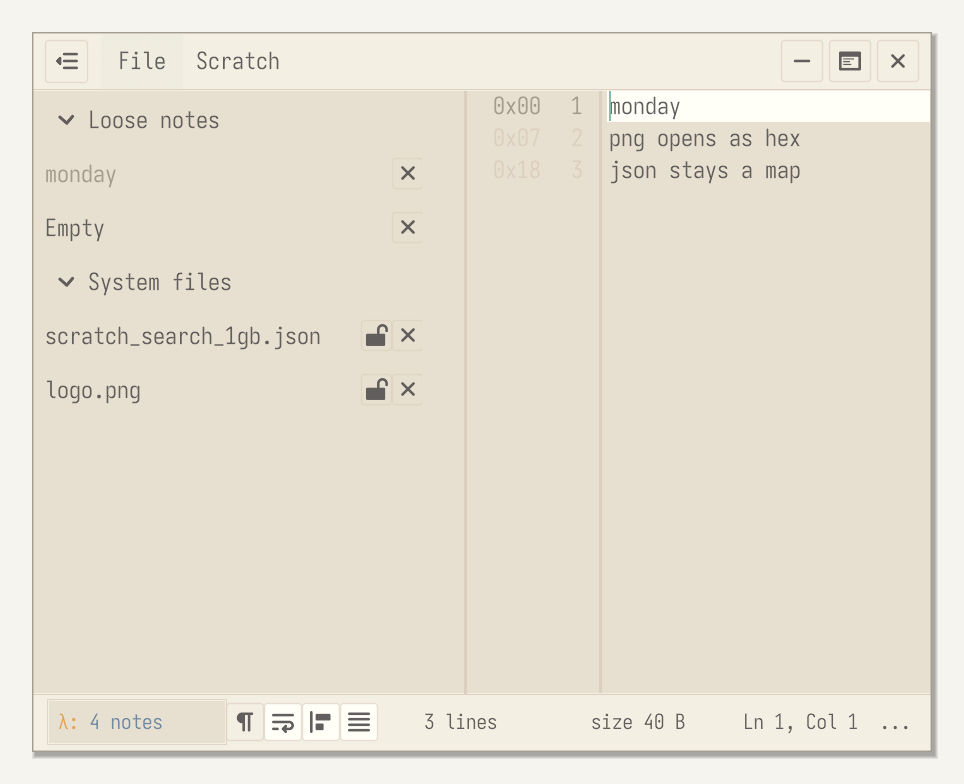
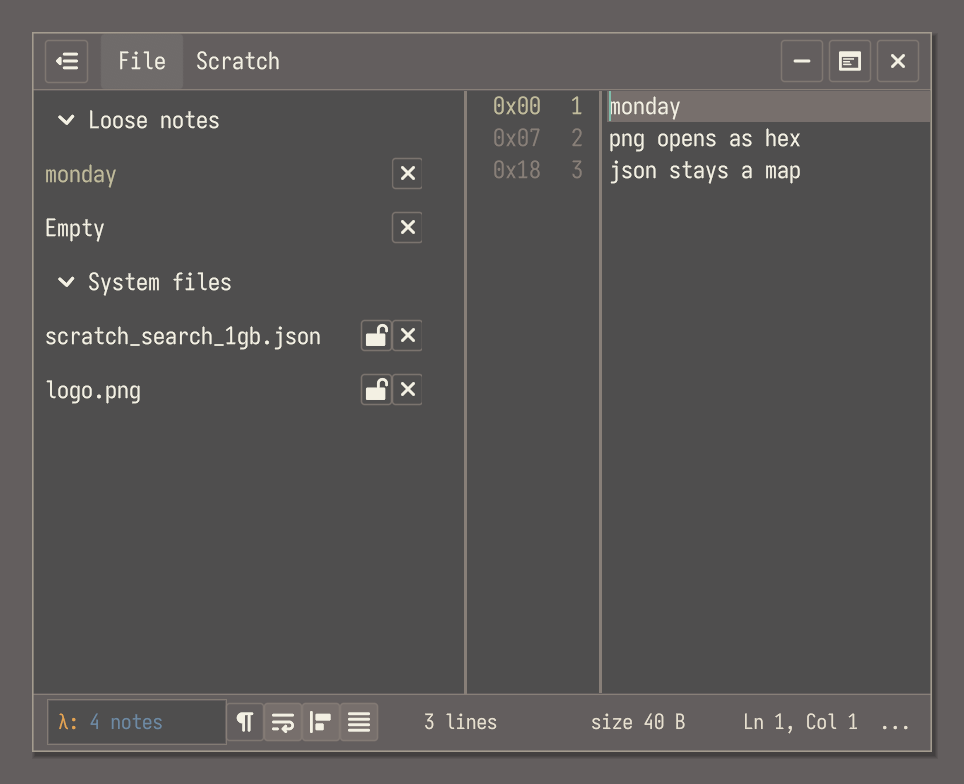
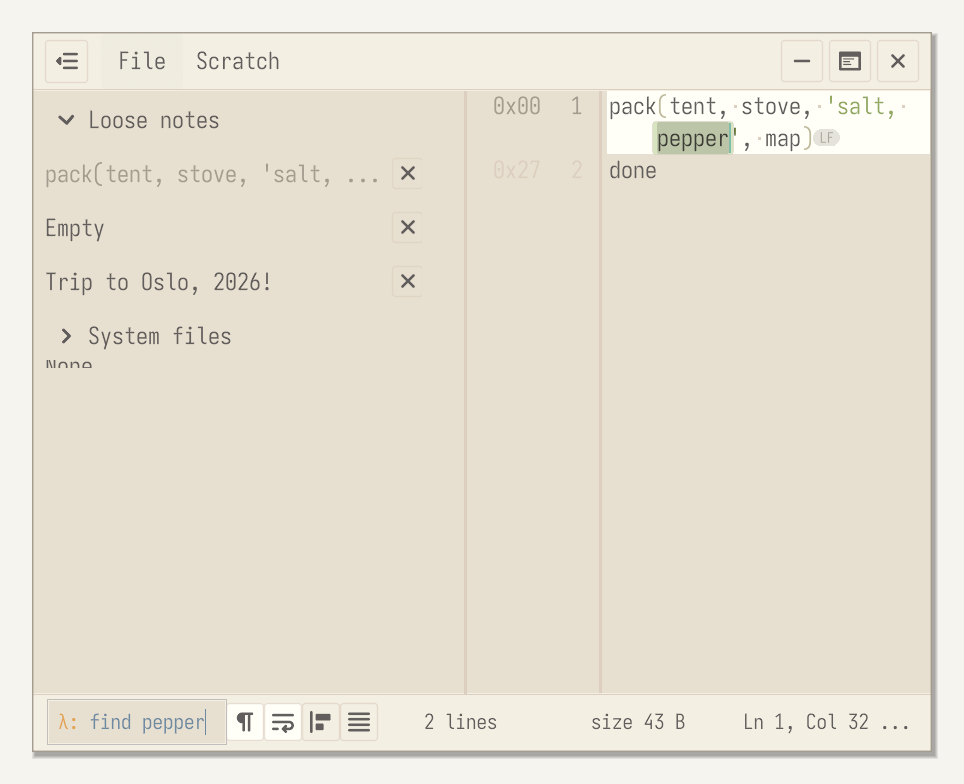
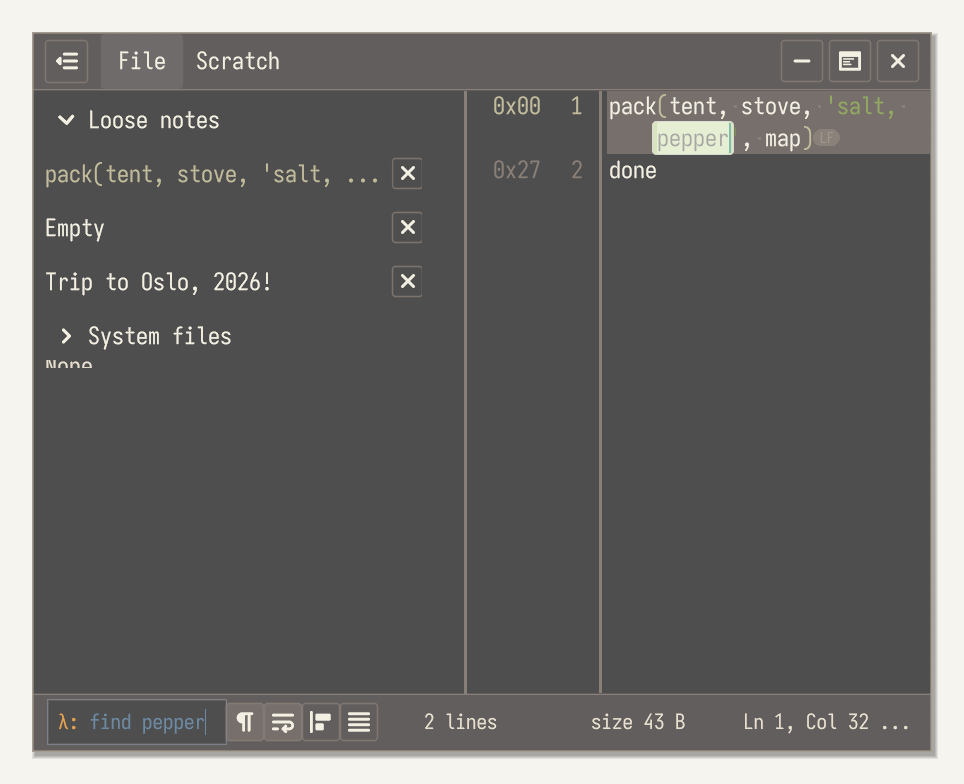
The status bar says Slip or File for the open page. The Show whitespace button draws spaces and tabs. The rest of the bar shows the number of lines, the size, and the cursor's line, column, and byte offset. Hover the size to see the exact count of bytes, and click it to copy that count. Click a line number to select that line. Each line number is preceded by that line's byte offset in hex (0x). The offset and number of the line you are on stand out, and the others are dimmed.
17. Dev meter
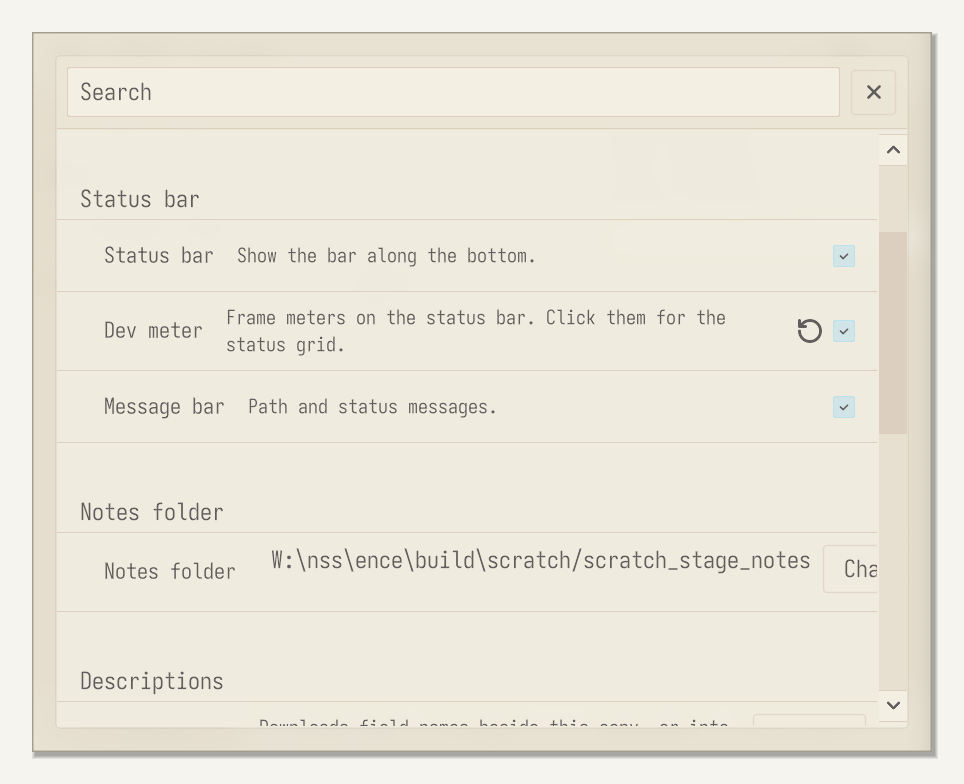
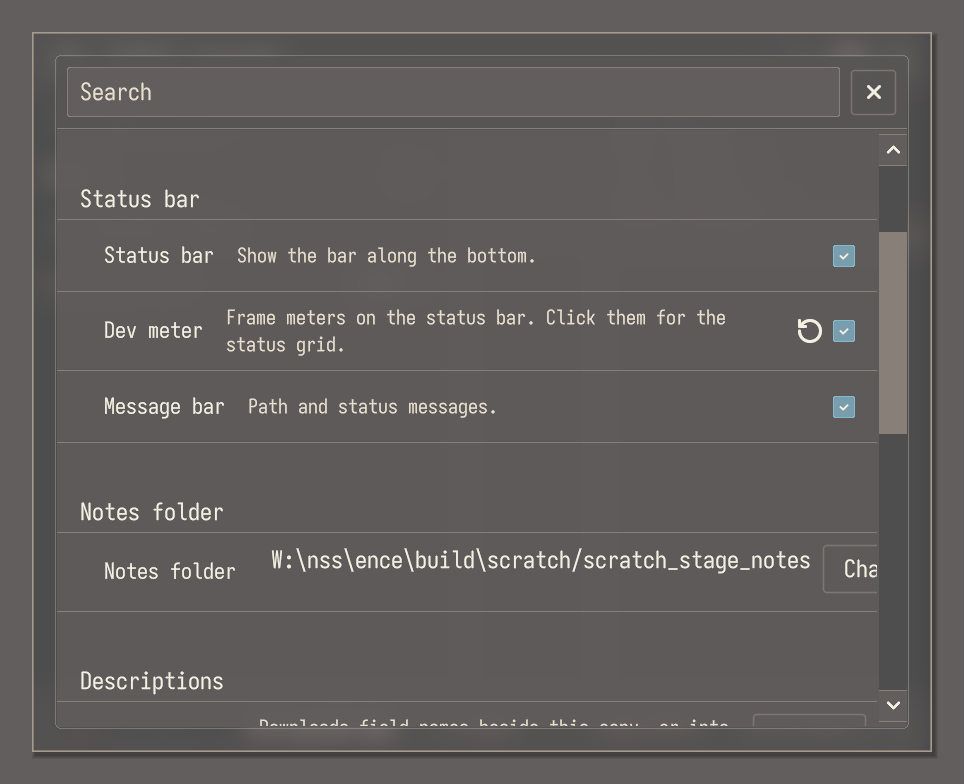
Options > Status bar has Dev meter, off at first. Turn it on to put frame meters on the status bar. Both the Dev meter setting and the meters appear only while the Status bar option is on.
18. Status grid
Click the frame meters to open the status grid. It has two panes: Meter columns, with frame budget, draw load, upload ring, and memory; and Session statistics, with the window size, uptime, frames, memory, and frame times. The X at the top right closes it.
19. Typing aids
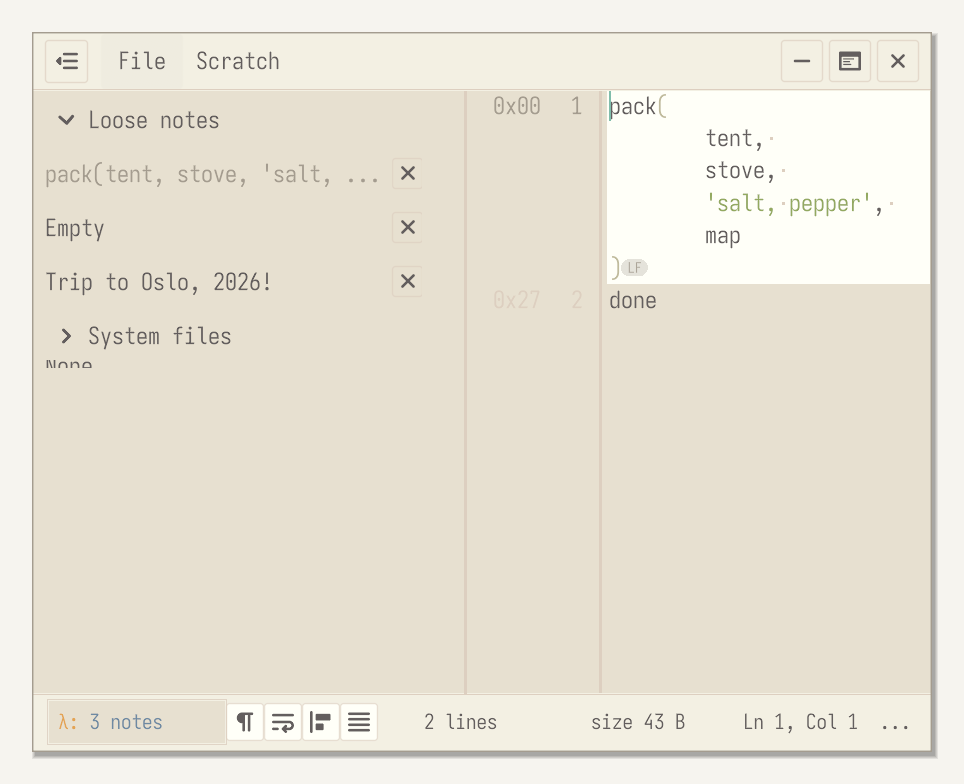
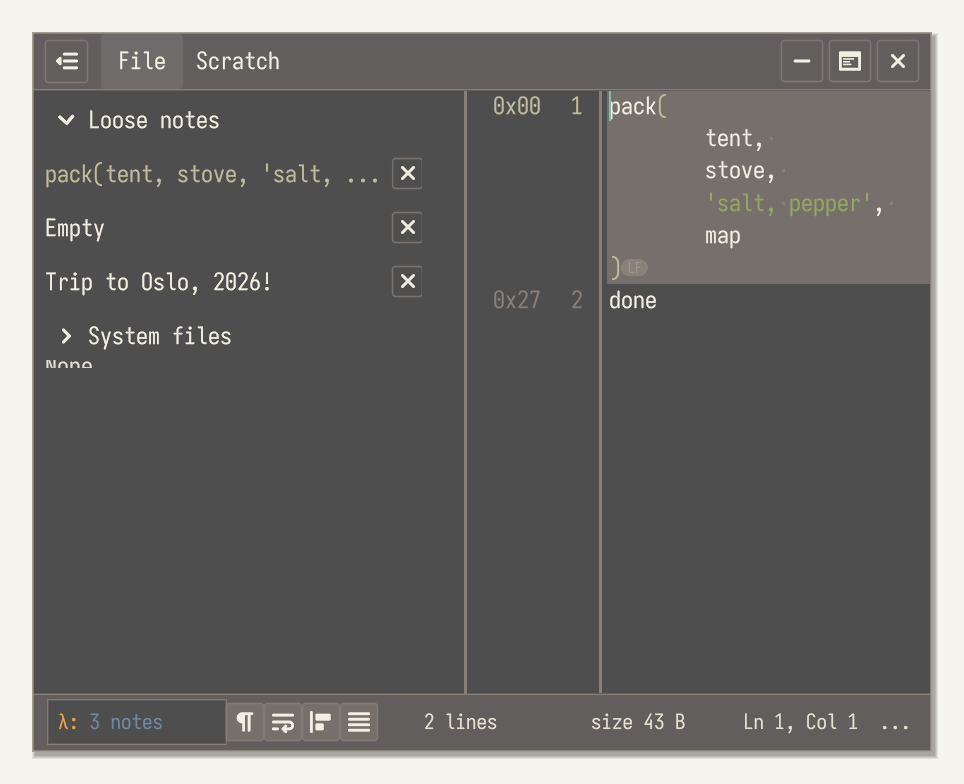
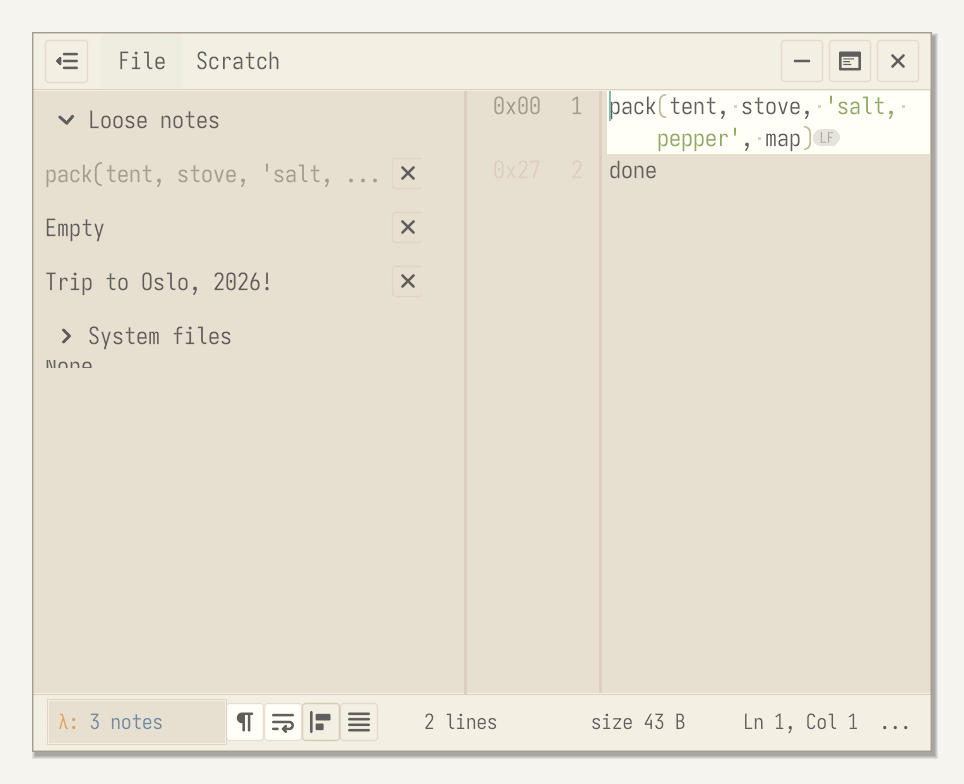
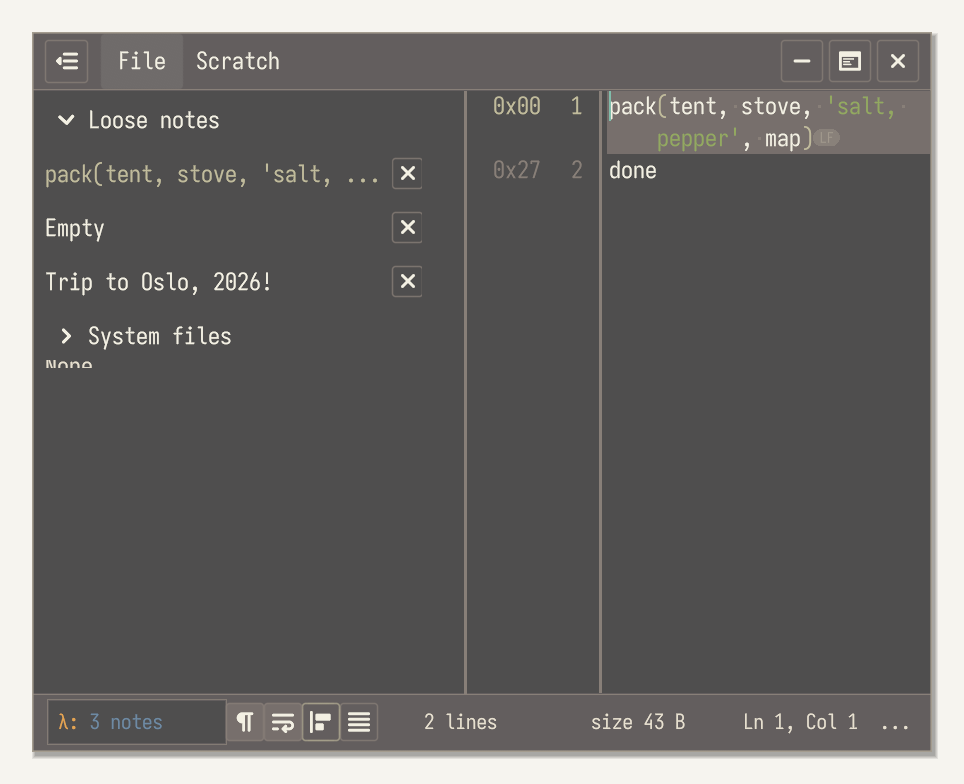
Next to Show whitespace, the status bar has Virtual newline, Smart indent, and Smart spread; a lit button means that aid is on. Virtual newline, on at first, wraps long lines at the edge of the window. Smart indent, off at first, indents rows that sit inside brackets. Smart spread, off at first, starts a new row after an opening bracket and after each comma inside brackets, and gives the closing bracket its own row; text in quotes stays together. All three change only how the text is shown; the file stays as it is.
20. Find in a note
Ctrl+F opens find in the message bar at the bottom left, already filled in with find. Type a word after it, and Scratch selects the next match in the open note. Esc closes find. Clicking the message bar and typing find and a word does the same. Find in notes, on the File menu, is separate. It searches every slip on the stack and every slip in compost, including a compressed .ncmp. A result shows the title, the date, and the line around the word, and a packed slip is marked. Opening a result selects that slip and the match. Opening a packed result puts the slip back on the stack first. A file that is not text is skipped. Ctrl+F stays on the open note.
21. Open in...
Right-click the text, a selection, the hex, or a slip in the list. The menu matches that surface. A selection offers Cut, Copy, Paste, and Select all. Hex offers Copy value when a field is under the pointer, and Copy bytes. A slip in the list offers New from clipboard, Duplicate, Keep, Close note, Delete note, Save as, and Lock file when the row is an opened file. Keep holds that slip out of the two-week pack. Don't keep puts it back on that clock. Duplicate copies that row into a new slip. Open in... is on each of those menus. Paste in the text stays paste into that page.
22. Compost
Once a day, slips older than two weeks are packed into compost and taken out of the recent list. Keep on a slip's menu holds that slip out of this pack. The row says Kept, and clicking Kept takes the mark off. Keep holds 8 slips. The mark is a keep line in the recent index, not text in the slip. Close and Delete still pack a kept slip. Compost is a folder inside the notes folder. Each packed slip is a compressed .ncmp file in compost/yyyy_mm, where yyyy_mm comes from the slip's own name. A slip file that is larger than 64 KB on disk, such as a big file dropped from a temporary folder, is moved there as it is, without packing.
23. Getting a slip back
Closing and deleting both pack a slip into compost. Compost is a section in the sidebar, grouped by month. Open a row there and the slip comes back into the stack. For a few seconds, Undo on the status bar does the same thing. The packed file is removed only after that write succeeds. A full stack stays full, and the packed file stays where it is.
24. Theme
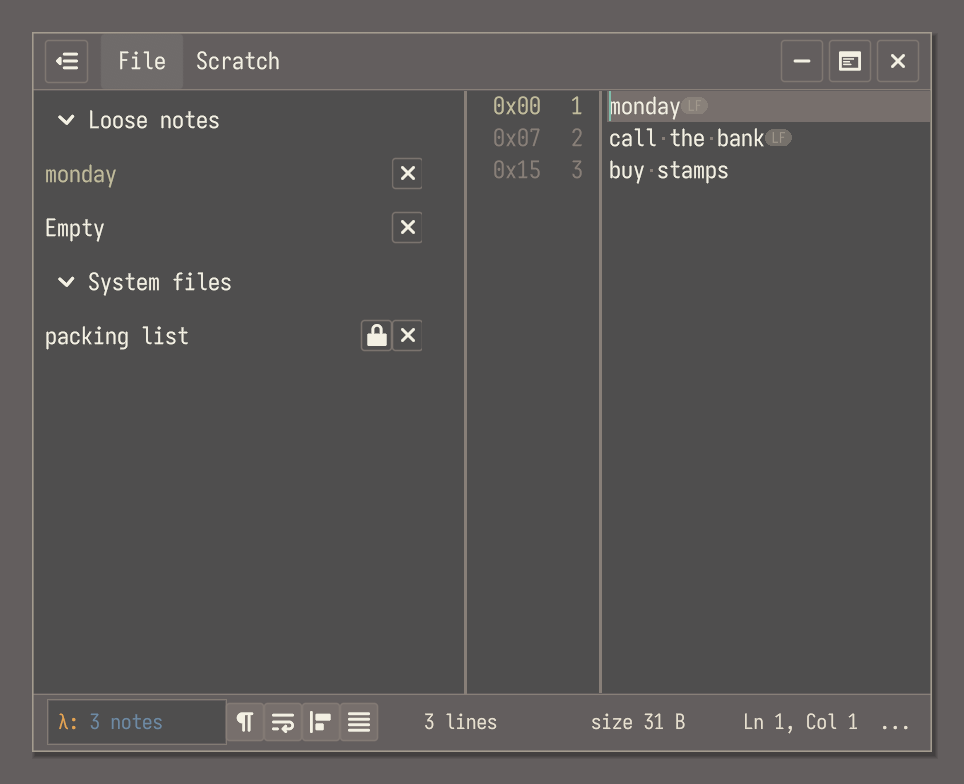
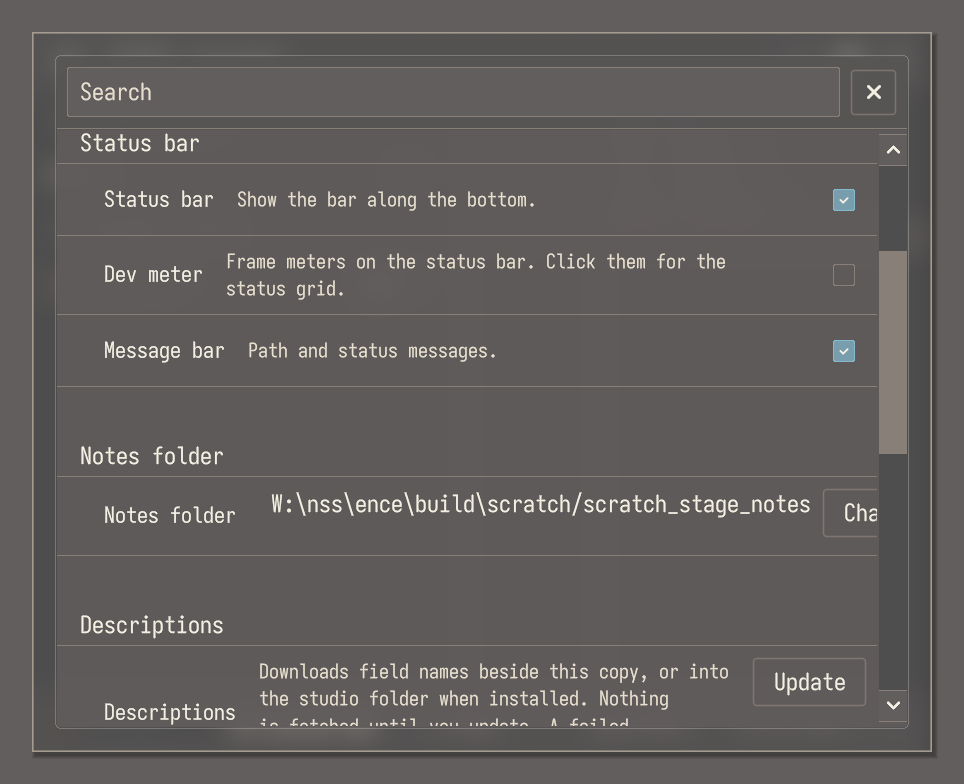
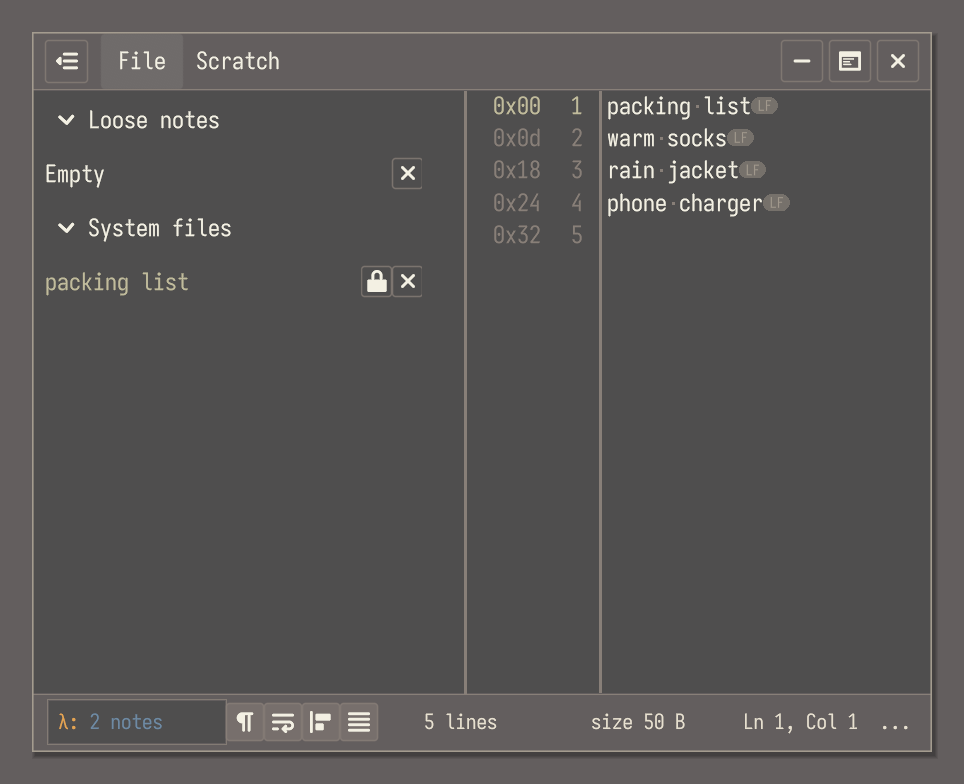
Under Options > Theme, System follows the OS, and Inverse flips light and dark, so pick Inverse for a dark Scratch on a light desktop. Color scheme picks the palette.
25. Hints
Scratch has a single one-time notice, Hex parsing, which offers the descriptions the first time a hex view opens without them. Options > Hints > Reset brings it back, and Scratch confirms with Notices reset.
26. Window
The window remembers where you left it. New window opens another view of the same stack.
27. Column guides
A column ruler sits above the text. A first install starts with one guide at column 80. Drag the guide button out across the columns to drop a guide, and drag a guide's cap to move it. Hover the button to remove a guide. The same ruler sits on the hex bytes. The columns live in the app config, not in the slip. The line-number gutter still selects the line.
28. Third-party notices
File > Licenses lists the third-party code compiled into this copy of Scratch, and shows each license. It does not ask for a product key. Libraries this copy does not compile are not in the list.
29. Self-test
From a command line, scratch -self-test (or --self-test) runs Scratch's own checks on test files in the program's folder, then exits. The exit code is 0 when every check passes and 1 when any fails, and each failed check is logged by name.